Tool Panels
The panels on the Main tab provide tools for choosing scene layouts and views properties, improving visualizations, making basic measurements, and other operations. These panels are arranged by default as shown below. However, you can rearrange the tool panels, as well as move them to the top of the workspace. See Customizing the Workspace for information about creating a custom workspace.
Tools panels
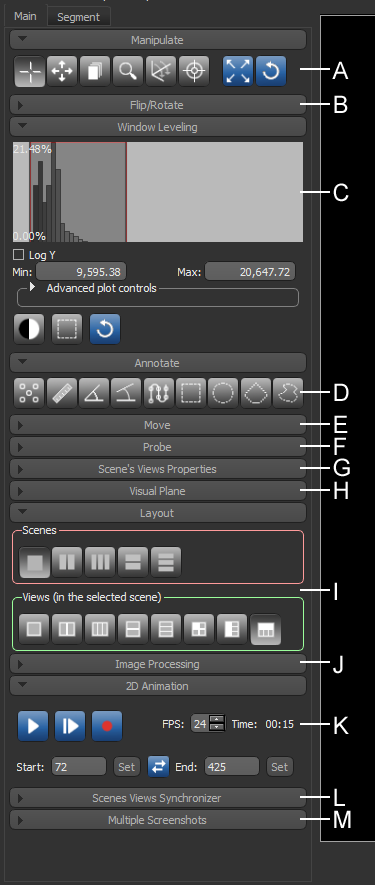
A. Manipulate B. Flip/Rotate C. Window Leveling D. Annotate E. Move F. Probe G. Scene's Views Properties H. Visual Plane I. Layout J. Image Processing K. 2D Animation L. Scenes Views Synchronizer M. Multiple Screenshots
|
|
Description |
|---|---|
|
Manipulate |
The Manipulate panel provides a number of basic tools, such as Track, Pan, Cine, and Zoom (see Using the Manipulate Tools).
|
|
Flip/Rotate |
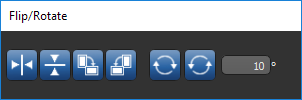
Items in the Flip/Rotate panel allow you to flip views horizontally or vertically. You can also rotate views 90-degrees clockwise and counter-clockwise or by a specified amount (see Using the Flip and Rotate Tools).
|
|
Window Leveling |
Window leveling offers the opportunity of changing density relationships (brightness and contrast) within images to obtain the most useful information (see Window Leveling).
|
|
Annotate |
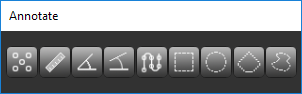
Provides a set of tools that you can use to make basic measurements on 2D views. You can measure straight lines and angles with the Ruler and Angle tools or use the Region tools to calculate the perimeter and area of a selected portion of a 2D image.
See Adding Annotations for information about creating rulers, angles, regions, and other annotations. |
|
Move |
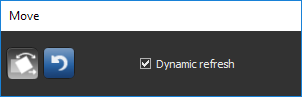
If required, you can translate and rotate the currently selected object or objects in a scene with the tools available in the Move panel (see Using the Move Tools).
|
|
Probe |
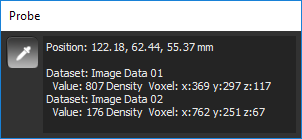
You can view the native value and coordinates of the voxel under the mouse cursor in the Probe panel (see Using the Probe Tool).
NOTE Multiple values will be displayed for images that are in Fusion mode. |
|
Scene's Views Properties |
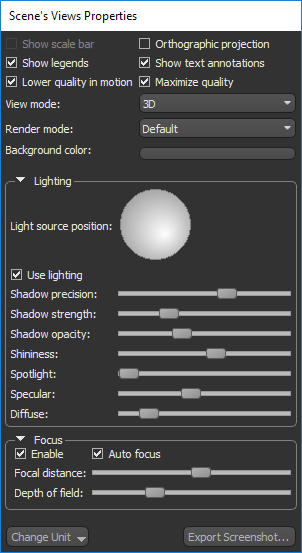
A number of options are available in the Scene's Views Properties panel for modifying the properties of 2D and 3D views (see 2D Scene's Views Properties and 3D Scene's View Properties).
|
|
Visual Plane |
You can add up to three visual planes to a 3D view to clip a objects along an arbitrary plane or planes (see Working with Visual Planes).
|
|
Layout |
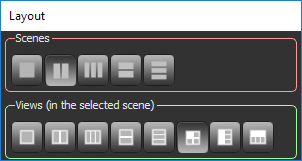
The layout of the scenes in the workspace, as well as the layout of views in each scene, can be selected in the Layout panel (see Scene Layouts and Views).
|
|
Image Processing |
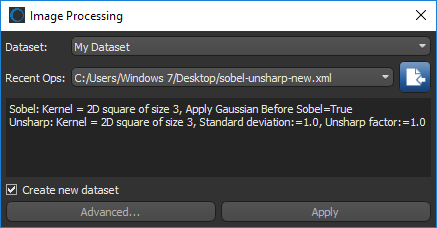
To help accelerate repetitive post-processing tasks, you can import a saved image filtering workflow and then apply that operation to selected image data in the Image Processing panel (see Applying Saved Operations).
|
|
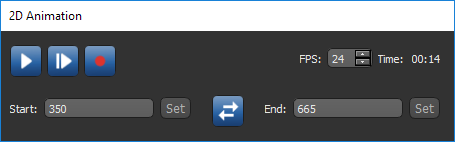
2D Animation |
In the 2D Animation panel, shown below, you can play and record animations that automatically scroll through all image slices, or a selected range, in a volumetric dataset (see Working with 2D Animations).
|
|
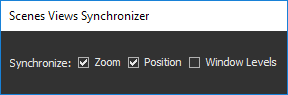
Scenes Views Synchronizer |
The options on the Scenes Views Synchronizer panel let you automatically synchronize the zoom factor, position, and window leveling between the views in multiple scenes in the workspace (see Synchronizing Scenes Views).
|
|
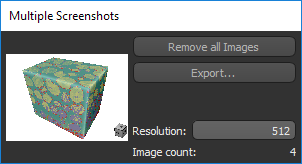
Multiple Screenshots |
The option to accumulate and then export multiple screenshots is available in the Multiple Screenshots panel (see Exporting Multiple Screenshots).
|



Refer to the topic Segment Tools for information about the tools available on the Segment tab.

 LEARNING LINKS

